Getting Droid to Work with HyperFrames Studio on Linux
Three fixes to run Droid as a custom agent in HyperFrames Studio: non-interactive mode, an absolute command path, and a manual skills install.

Contents · 7 sections
I recently joined the Factory Guild, and around the same time HyperFrames Studio was released. The version I tested offered Claude Code, Codex, and Grok as built-in agents, but not Droid.
Since it supports custom agents, I wanted to see if I could get Droid working inside it. I found a short video for my Guild post would become a suitable test.
Getting it working took three fixes: non-interactive mode, an absolute command path, and a manual skills install. Here’s the setup.
Install HyperFrames Studio and Droid on Linux
The Linux version is a single AppImage file for 64-bit Intel and AMD computers. Before configuring Droid, follow Factory’s CLI installation guide, then run droid in your terminal and sign in; the skills commands below also require Node.js and npm.
You can also refer to HyperFrames Studio Docs for installation guidance.
How HyperFrames runs a custom agent
In the version I tested, HyperFrames handles each message like this:
- Runs your command inside the project folder.
- Sends the prompt on standard input (stdin).
- Waits for the program to exit.
- Shows the last line of output as the reply.
So the agent has to read a prompt, do the work, print an answer, and exit, with no interactive screen.
Problem 1: Droid never answers
When you go to add a new custom agent, you will be able to enter the name, the command to launch your agent, and any additional arguments to pass to the command.
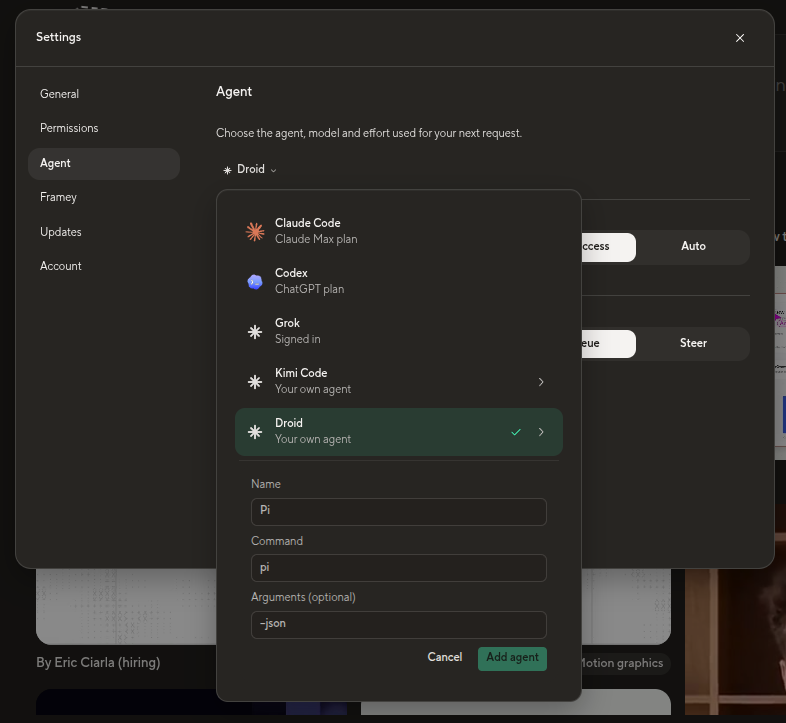
Problem: If you add Droid with only the command droid, it opens its interactive terminal screen and waits for you to type. HyperFrames waits for it to finish, so nothing happens.
Solution: Use Droid’s non-interactive mode, droid exec. It reads the prompt from stdin, does the work, and exits.
Steps
1. Find Droid’s full path:
which droidYou’ll usually get /home/<you>/.local/bin/droid.
2. Check that non-interactive mode works:
echo "Reply with exactly: OK" | droid execIt should print OK and exit. If it asks you to sign in, run droid once and sign in first.
3. In HyperFrames Studio, open the agent picker, choose to add a custom agent, and fill in:
- Name: Droid
- Command: the full path from step 1
- Arguments:
exec --auto medium
Command takes only the program. Put every flag in Arguments.
4. Pick Droid in the agent picker and send a short test message, such as “List the files in this project”.
The --auto flag sets what Droid may do without asking:
--auto low: allow low-risk project file creation and edits.--auto medium: allow those edits plus local development commands, such as builds, tests, and trusted package installs. Use this for local build and render workflows.- No
--autoflag: Droid can read files but can’t change anything.
Problem 2: The app says Droid is not installed
Problem: Apps opened from the desktop launcher may use a different PATH than your terminal. A program that your terminal finds can still be missing for the app.
Solution: Always put the full path in Command, as in step 3. This matters even more for CLIs that install into their own folder, such as ~/.kimi-code/bin.
Problem 3: Droid doesn’t know HyperFrames
Problem: In my setup, Studio’s skills picker did not supply skills to custom agents. Install them separately so Droid has the HyperFrames rules for timing, animation, and rendering.
Solution: Install the HyperFrames skills yourself, in the folder Droid reads them from. Droid then loads them in every project, including the ones Studio opens.
1. Run the official installer:
npx skills add heygen-com/hyperframes2. When it asks:
- Choose Core Skills. The
/hyperframesskill installs the other workflows when a request needs them. - Choose Droid as the agent and a global (user-level) install so the skills are available across projects. Droid reads user-level skills from
~/.factory/skills/. A project’s own.factory/skills/folder works too, but only for that project.
3. Check the install:
ls ~/.factory/skills | grep hyperframes
npx hyperframes skills check
4. Start a new chat and name the skill in your first request:
Using /hyperframes, make a 10-second title card that says “Hello from Droid”.
Choosing a model
You can add any droid exec flag in Arguments. For example:
exec --auto medium -m <model-id> -r highHere -m picks the model and -r sets the reasoning effort; supported levels depend on the model.
Troubleshooting
HyperFrames won’t open after you close it
What you see: You close the window, and after that, opening the app does nothing.
Why: An old HyperFrames process may still be running without a window, preventing a fresh launch. In my case, this happened after Droid and Kimi got stuck in interactive mode.
Fix:
1. Check whether an old copy is still running:
pgrep -af HyperFrames2. Stop it:
pkill -f HyperFramesIf it’s still listed a few seconds later, force it to stop with pkill -9 -f HyperFrames.
3. Open the app again.
Prevent it: Use non-interactive mode for custom agents (Problem 1).
HyperFrames doesn’t start at all
Open a terminal first to read the startup error. If it reports a sandbox failure, this workaround may help:
~/Applications/hyperframes.AppImage --no-sandboxRunning with --no-sandbox disables Electron’s sandbox. Use it only as a workaround for a confirmed sandbox error, rather than as the default launch option.
The essential setup is simple: droid exec, an absolute command path, and a separate HyperFrames skills install. Start with the title-card test before moving on to a larger video.